How to Merge PDF on iPhone for Free (3 Easy Ways, No App Needed)
 Written by Muhammad Usman Babar, Founder and CEO of DoxOrbit
· 8 min read
You've got a cover letter in your email, a CV in the Files app and a certificate someone sent on WhatsApp. The job portal wants one PDF. You're on your phone, and you don't want to download yet another app full of adverts and "go premium" pop-ups.
The good news is that you can merge PDF on iPhone for free with tools that are already there, or with a browser tool that takes seconds. This guide walks through three methods, explains which one to pick, and shows how to get every page in the right order before you send the file.
Quick answers
- Can you merge PDFs on an iPhone without an app? Yes. Use the Files app's "Create PDF" option, or a free browser tool such as DoxOrbit Merge PDF in Safari.
- Which way is best? Files is quickest for two or three files. A browser tool is better when you need to reorder files, pick pages or add photos.
- Is it free? All three methods in this guide are free.
- Will I lose quality? No. Merging joins pages without converting them, so text stays sharp.
In this guide
Can you merge PDF on iPhone without an app?
Yes, and you have more than one option. Apple builds a simple PDF merge feature into the Files app, and the Shortcuts app can do the same job with a ready-made shortcut. If you want more control, a browser-based PDF merger runs in Safari with nothing to install.
Each method has a trade-off. The built-in options are fast but basic. A browser tool gives you a proper workspace where you can see every file, drag them into order and remove pages you don't need. Which one suits you depends on how many files you have and how fussy the place you're sending them to is.
Method 1: Merge PDFs with the Files app
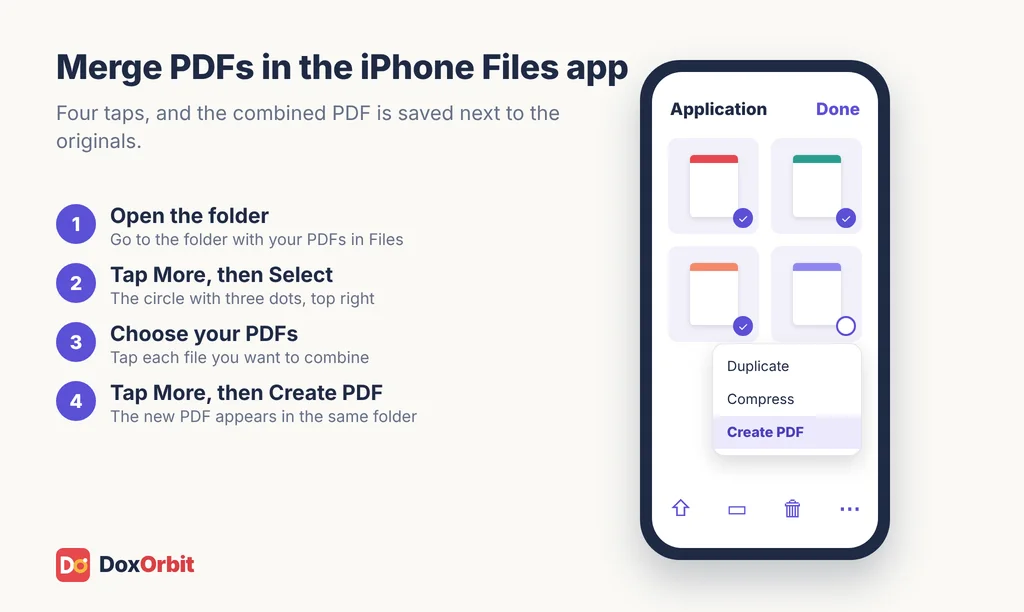
The Files app is the quickest built-in way to combine two PDFs on an iPhone. Here's how it works:
- Open the Files app and go to the folder that holds your PDFs.
- Tap the More button (the circle with three dots), then tap Select.
- Tap each PDF you want to combine.
- Tap the More button at the bottom right and choose Create PDF.
Files saves the new combined PDF in the same folder. Your original files stay where they were, so nothing is lost if you make a mistake.
What the Files app can't do
This method is handy, but it has limits. You can't drag the files into a new order before merging, so the order isn't always the one you want. All the files also need to sit in the same folder, so you may have to move them together first. And there's no way to drop single pages, rotate a sideways scan or add a blank page for printing.
For a quick join of two files, none of that matters. For a job or visa application where the order is checked, it can cause problems.
Method 2: Merge PDF on iPhone for free in Safari
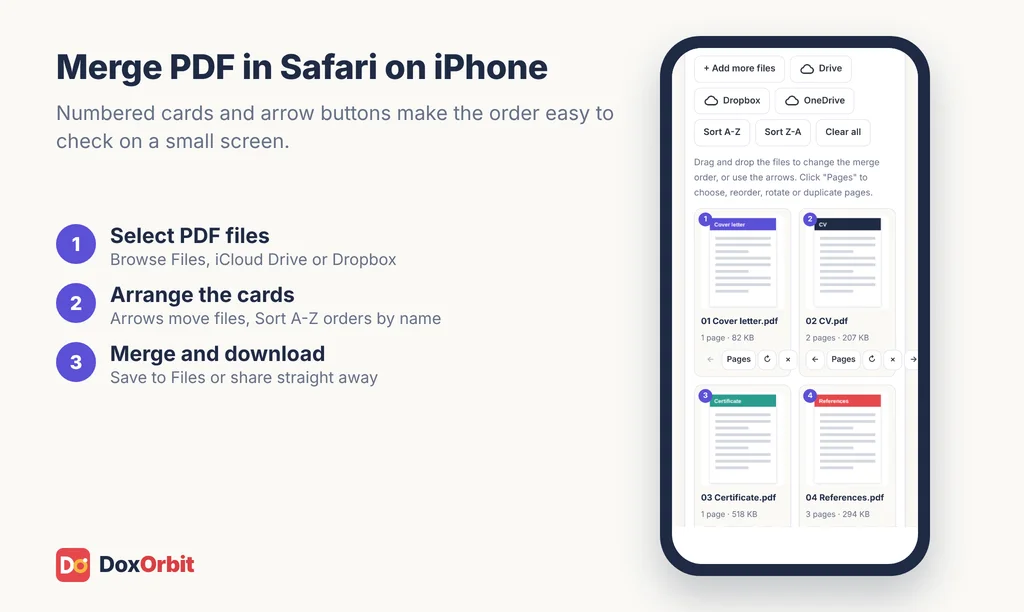
A browser tool gives you the control the Files app lacks, without installing anything. With DoxOrbit's free PDF merger, the steps look like this:
- Open Safari and go to doxorbit.com/merge-pdf.
- Tap Select PDF files, then Browse to pick files from Files, iCloud Drive or another storage app. You can also tap Dropbox to pick files straight from your Dropbox.
- Each file appears as a numbered card. Use the arrow buttons to move files earlier or later, or sort them A-Z by name.
- Tap Pages on any file to keep only the pages you need, such as "1-2" from a long bank statement.
- Tap Merge PDF, then Download merged PDF. Save it to Files or share it straight to Mail or WhatsApp.
A few extras make a real difference on a phone. You can add JPG or PNG photos alongside your PDFs, which is useful when someone has sent you a picture of a document instead of a scan. There's a double sided printing option that adds blank pages where they're needed, and you can add page numbers or a contents page under "More options".
Is it safe to merge PDFs in a browser?
It's a fair question, because many online tools upload your files to their servers. DoxOrbit works differently. The merging happens inside Safari on your iPhone, so your PDFs aren't sent to us at all. You can check this yourself by loading the page, switching on airplane mode and then merging two files. It still works. Our page on how we protect your files explains the details.
Method 3: Merge PDFs with the Shortcuts app
The Shortcuts app is Apple's automation tool, and it comes with ready-made shortcuts that can combine PDFs. Once a merge shortcut is set up, you select your PDFs, open the Share sheet and run the shortcut. It then asks where to save the result.
This method suits people who merge files often and like automation. For most people it takes longer to set up than it saves, and like the Files app, it doesn't give you a visual way to check the page order before you merge.
Which method should you use?
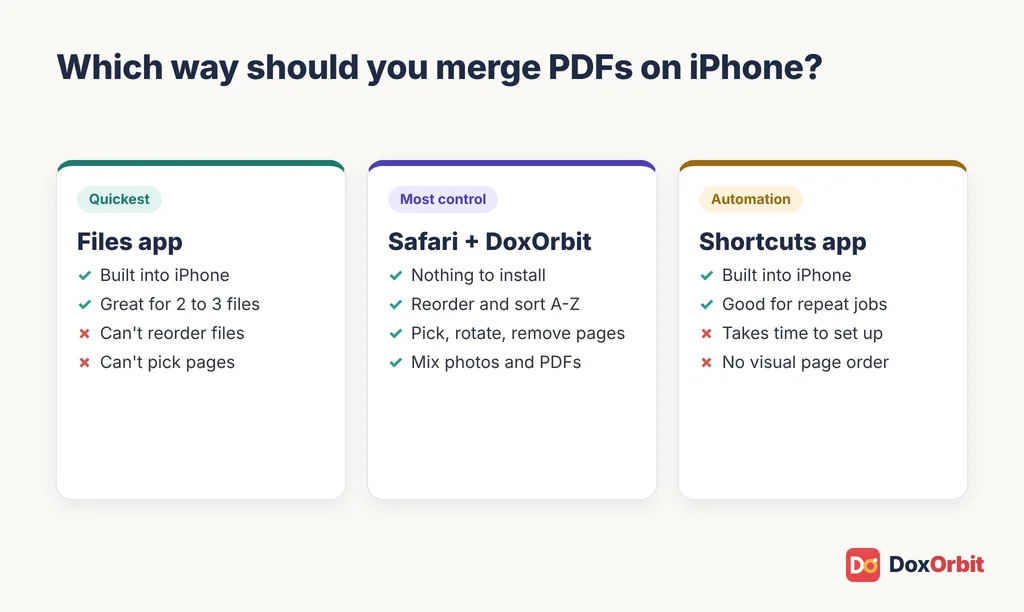
Here's a side by side view to help you choose:
| What you need | Files app | Safari + DoxOrbit | Shortcuts |
|---|---|---|---|
| Nothing to install | Yes | Yes | Yes (built in) |
| Reorder files before merging | No | Yes | No |
| Keep only some pages | No | Yes | No |
| Add photos (JPG, PNG) | Yes | Yes | Depends on the shortcut |
| Files from Dropbox | Through Files | Yes, direct | Through Files |
| Double sided printing option | No | Yes | No |
| Best for | Two quick files | Applications and bundles | Frequent repeat jobs |
Getting your PDFs into one place first
Most merging problems on an iPhone start before the merge. Your files are scattered across Mail, WhatsApp, Safari downloads and cloud storage. Spending a minute gathering them saves a lot of hunting later.
- From Mail: tap the attachment, tap the Share button, then choose Save to Files.
- From WhatsApp: open the document, tap Share and choose Save to Files.
- From Safari: downloads go to the Downloads folder in Files by default.
- Paper documents: scan them with the Notes or Files app. Apple's built-in scanner saves pages as a PDF, and our guide to combining scanned documents into one PDF covers this step by step.
Create one folder, something like "Application", and save everything there. Then whichever method you use, all your files are together.
How to keep pages in the right order
Order matters more than people expect. A visa officer or recruiter who has to scroll back and forth to find your passport page or degree certificate isn't starting on a good note.
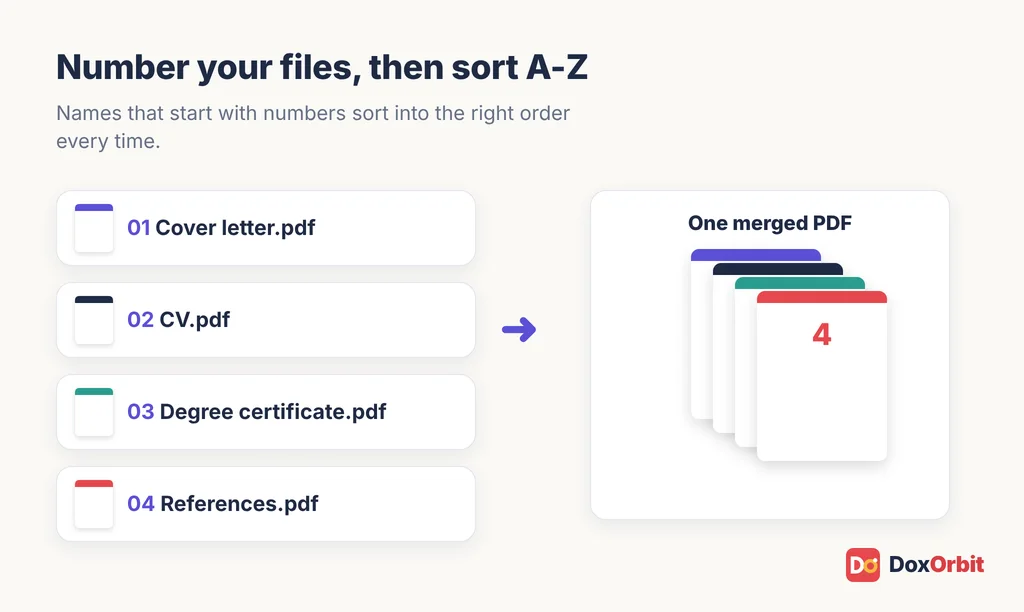
The simplest trick is to rename your files with numbers first: "01 Cover letter", "02 CV", "03 Certificates". In Files, press and hold a file and tap Rename. Numbered names sort neatly, and with DoxOrbit you can then tap Sort A-Z and the order is done.
Before you send the merged file, open it and scroll through once. Check that every page is the right way up, nothing is missing and nothing appears twice. It takes thirty seconds and catches most mistakes.
Common problems and fixes
"Create PDF" doesn't appear in Files
Make sure you've selected at least two files and that they're all PDFs or images. If the files are in different folders, move them into the same one first.
One of my PDFs won't open
Password-protected PDFs can't be merged until the password is removed. If you know the password, unlock the file first, then try again. Damaged files sometimes open after you download them again from the original email.
The merged file is too big to send
Scans and photos make files large. Many portals cap uploads at 2 MB or 5 MB. A compress PDF tool can shrink the file afterwards. DoxOrbit's compress tool is on the way, and our PDF tools page lists everything that's available now.
A page is sideways
In DoxOrbit, tap Pages on the file and rotate that page before merging. The Files app doesn't offer this, which is another reason a browser tool helps with scanned documents.
Frequently asked questions
How do I merge two PDF files into one on my iPhone?
In the Files app, select both files, tap More and choose Create PDF. If you need them in a specific order, use a browser tool like DoxOrbit, where you can arrange them first.
Can I merge PDF on iPhone for free?
Yes. The Files app, the Shortcuts app and DoxOrbit's Merge PDF tool are all free, with no file limits.
Do I need Adobe Acrobat to combine PDFs on an iPhone?
No. You can merge PDFs without Adobe Acrobat using the built-in Files app or a free browser tool.
Can I combine photos and PDFs into one file?
Yes. DoxOrbit accepts JPG, PNG and other images alongside PDFs and turns each image into a PDF page. iPhone HEIC photos need converting to JPG first.
Where does the merged PDF go?
The Files app saves it in the same folder as the originals. With DoxOrbit, tap Download, then save it to Files or share it directly.
Final thoughts
For a quick join of two files, the Files app does the job in a few taps. When order matters, when you need only some pages, or when photos and PDFs need to go together, a browser tool gives you much more control without adding another app to your phone. Gather your files into one folder, number them, merge, and check the result once before you hit send.
Ready to combine your PDFs on your iPhone?
Merge PDF files freeSources and citations
- Apple. "How to scan documents on your iPhone or iPad." Apple Support. support.apple.com/108963
- Adobe. "How to combine PDFs on an iPhone." Adobe Acrobat Hub. adobe.com
- iDownloadBlog. "How to merge and split PDF documents on iPhone and iPad." idownloadblog.com
- MakeUseOf. "How to merge PDFs on iPhone and iPad." makeuseof.com