How to Combine Scanned Documents Into One PDF (Free, on Any Device)
 Written by Muhammad Usman Babar, Founder and CEO of DoxOrbit
· 7 min read
Paper has a habit of turning up at the worst moment. A visa checklist asks for bank statements, a payslip and a tenancy letter as one PDF. A university wants your transcripts in a single upload. You have a pile of pages, a phone, and no scanner in sight.
This guide shows how to combine scanned documents into one PDF for free, using the phone you already have. You'll learn how to scan clean pages on iPhone and Android, how to mix scans with photos and existing PDFs, and how to put everything in the order an office expects before you merge it into one file.
Quick answers
- How do I combine scanned documents into one PDF? Scan each document with your phone, then add all the files to a PDF merger such as DoxOrbit Merge PDF, arrange them and click Merge.
- Do I need a scanner? No. iPhone (Notes or Files) and Android (Google Drive or Files by Google) both scan straight to PDF.
- Can I add photos too? Yes. DoxOrbit turns JPG and PNG photos into PDF pages and merges them with your scans.
- Is it free? Yes. Scanning apps built into your phone and DoxOrbit's merger cost nothing.
In this guide
Why combine scanned documents into one PDF?
Many application portals accept one file per section, or one file in total. Sending ten separate photos also makes life harder for the person checking them, and it's easy for one page to go missing on the way. A single PDF keeps everything together, opens on any device and keeps the pages in exactly the order you chose.
There's a practical side for you, too. One file is easier to name, back up and find again next year when you need to renew a visa or reapply for a course.
Scan documents on iPhone
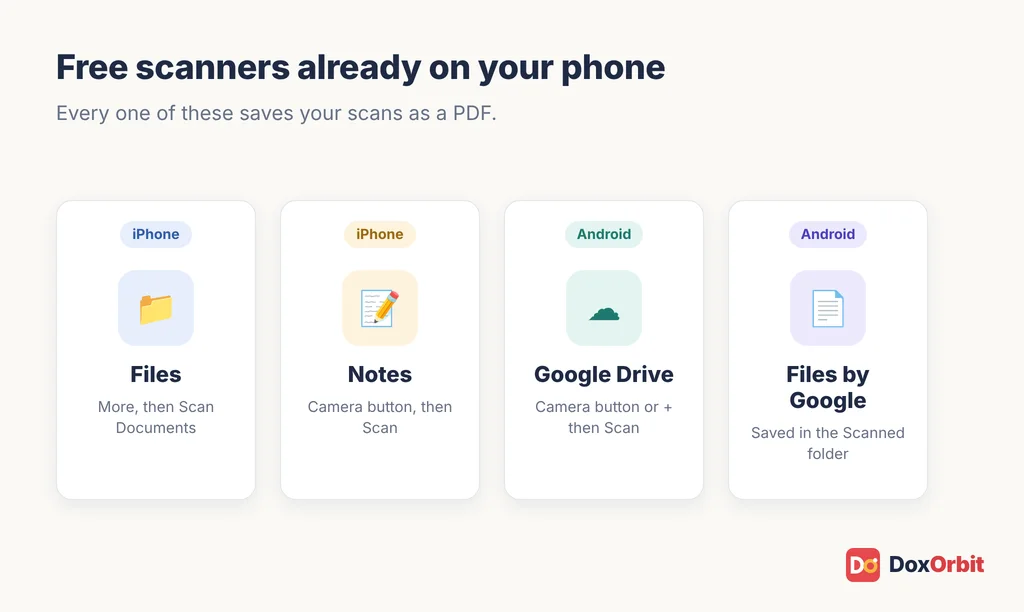
Apple builds a document scanner into the Notes app and the Files app. Both save scans as PDFs.
Using the Files app
- Open Files and go to the folder where you want the scan saved.
- Tap the More button (three dots) and choose Scan Documents.
- Hold your phone over the page. The camera captures it automatically when it finds the edges, or you can switch to manual and tap the shutter.
- Scan the next page, and the next. When you've finished, tap Save.
Using the Notes app
Open a note, tap the camera or attachment button and choose to scan. The scan sits inside the note, and you can share it as a PDF to Files when you're done. Files is the better choice when the scan is going into an application, because it saves a standalone PDF straight into a folder.
Scan documents on Android
On Android, the Google Drive app has a scanner that saves pages as searchable PDFs.
- Open the Google Drive app.
- Tap the camera button, or tap + and then Scan.
- Photograph the page. Drive crops and straightens it for you.
- Tap the plus button to add more pages, then Save and choose a folder.
Files by Google can scan too, and it saves your scans as PDFs in a "Scanned" folder. Some phones, such as Samsung and Pixel models, also have scanning built into the camera app.
How to get clean, readable scans
A scan that's blurry, dark or cut off can get an application sent back. A few habits make a big difference:
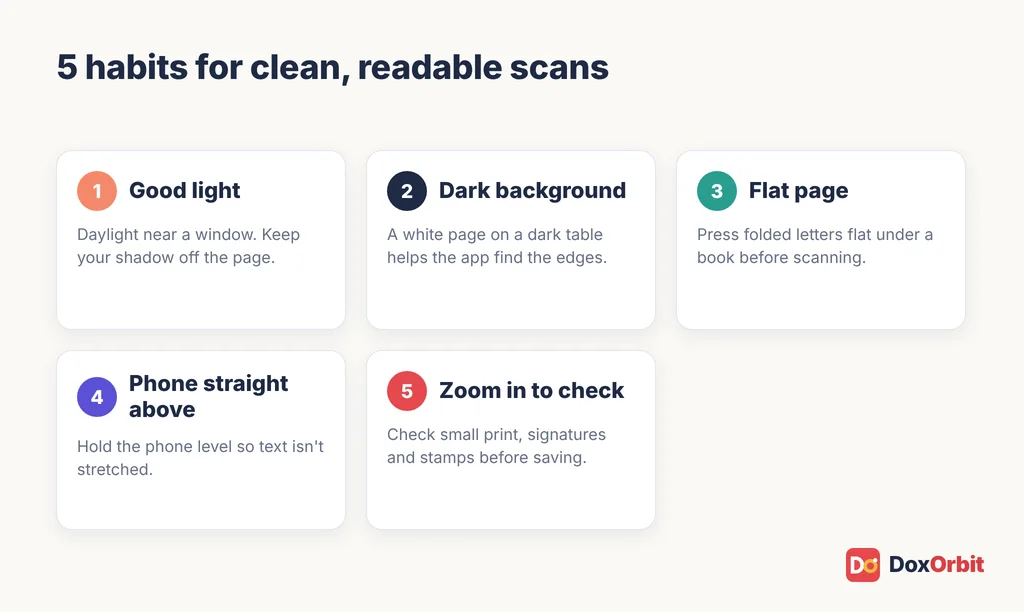
- Use good light. Daylight near a window works best. Avoid your own shadow falling across the page.
- Use a dark, plain background. A white page on a dark table helps the app find the edges.
- Keep the page flat. Folded letters cast shadows across the text. Press them flat under a book first.
- Hold the phone straight above the page. Angled shots make text look stretched.
- Check every page before saving. Zoom in on small print, signatures and stamps.
How to combine scanned documents into one PDF
Once your scans are saved, merging them takes a minute. DoxOrbit's free PDF merger works in any browser on your phone or computer:
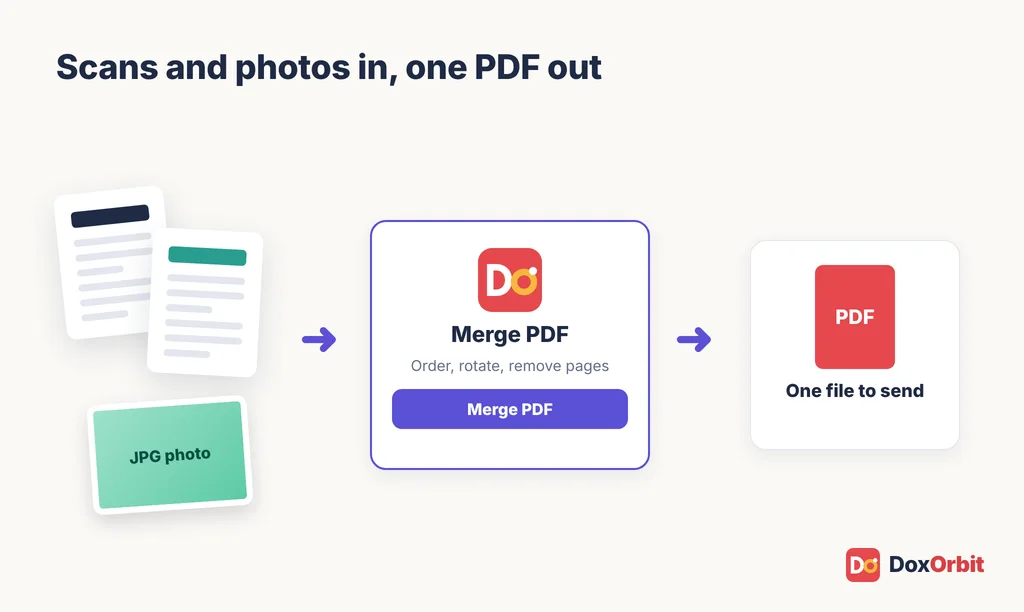
- Open doxorbit.com/merge-pdf and tap Select PDF files. Choose all your scans at once. You can also pick files from Dropbox.
- Add any photos too. JPG, PNG, WebP, GIF and BMP images are turned into PDF pages automatically, so a photo of a payslip can sit right next to a scanned bank statement.
- Arrange the files. Drag the numbered cards on a computer, or use the arrow buttons on a phone. Sort A-Z if you've numbered your file names.
- Tap Pages on any file to remove blank pages, rotate a sideways scan or keep only the pages you need.
- Tap Merge PDF and download your single file.
Because DoxOrbit processes files inside your browser, your bank statements and ID pages aren't uploaded to our servers. That matters for documents this personal. You can read more on how we protect your files.
If you're working on an iPhone, our guide on how to merge PDF on iPhone compares the Files app with browser tools in more detail.
Put pages in the order offices expect
When an organisation gives you a checklist, follow its order exactly. Officers often work through applications with the checklist beside them. If your documents match it, they find everything quickly.
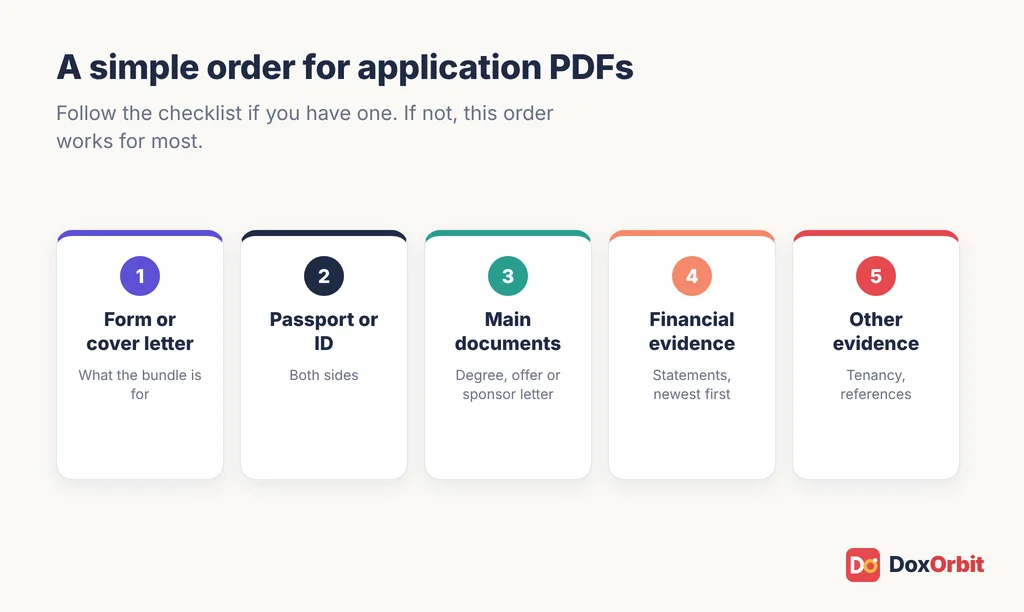
If there's no checklist, this order works for most applications:
| Position | Document | Why it goes here |
|---|---|---|
| 1 | Application form or cover letter | Tells the reader what the bundle is for |
| 2 | Passport or ID (both sides) | Confirms who you are |
| 3 | Main supporting documents | Degree, job offer or sponsorship letter |
| 4 | Financial evidence | Bank statements and payslips, newest first |
| 5 | Other evidence | Tenancy letters, references, extra certificates |
Rename your scans with numbers before merging, like "01 Form", "02 Passport", "03 Degree". Then the Sort A-Z button puts them in order in one tap.
For long bundles, open "More options" in DoxOrbit and tick Add a table of contents. It adds a contents page with clickable links to where each document starts, and Add page numbers makes it easy for someone to say "see page 7".
Keep the file small enough to upload
Scans are images, so a bundle of twenty pages can grow beyond what a portal accepts. Limits of 2 MB, 5 MB or 10 MB are common. Here's how to stay under them:
- Scan in black and white or greyscale when colour isn't needed. Many scanning apps offer this as a filter.
- Leave out pages nobody asked for, such as blank backs and terms and conditions.
- Avoid photographing documents at the highest camera resolution if a scan app is available. Scan apps produce smaller, cleaner files.
- If the merged file is still too large, run it through a compress PDF tool. DoxOrbit's compressor is coming soon, and new tools appear on our PDF tools page as soon as they're ready.
Frequently asked questions
How do I combine scanned documents into one PDF for free?
Scan your pages with your phone's built-in scanner, then merge the files with a free tool such as DoxOrbit Merge PDF. There are no limits and no signup.
Can I scan multiple pages into one PDF without merging?
Yes. Scan apps on iPhone and Android let you keep adding pages before you save. Merging is useful when the pages come from different scans, emails or photos.
Can I combine scanned documents into one PDF on a Mac or Windows PC?
Yes. Open DoxOrbit Merge PDF in any browser, drag your scans in, arrange them and merge. Mac users can also use the Preview app.
What if a scanned page is upside down?
Tap Pages on that file in DoxOrbit and use the rotate button on the page before merging.
Are my scanned documents safe?
With DoxOrbit, your files are merged in your own browser and never uploaded to our servers. Close the page and they're cleared from memory.
Final thoughts
You don't need a scanner, special software or a subscription to turn a stack of paper into one tidy PDF. Scan in good light, check each page, number your files, and merge them in the order the office expects. A few minutes of care at this stage can save weeks of back and forth on an application.
Have your scans ready?
Combine them into one PDFSources and citations
- Apple. "How to scan documents on your iPhone or iPad." Apple Support. support.apple.com/108963
- Google. "Scan documents with Google Drive." Google Drive Help. support.google.com
- Google. "How to scan documents with Files by Google." Files by Google Help. support.google.com
- Proton. "How to scan a document on iPhone." Proton blog. proton.me