Merge PDF files online free
Combine multiple PDFs into one file in the order you want. 100% free, no signup, no limits, and your files never leave your device.
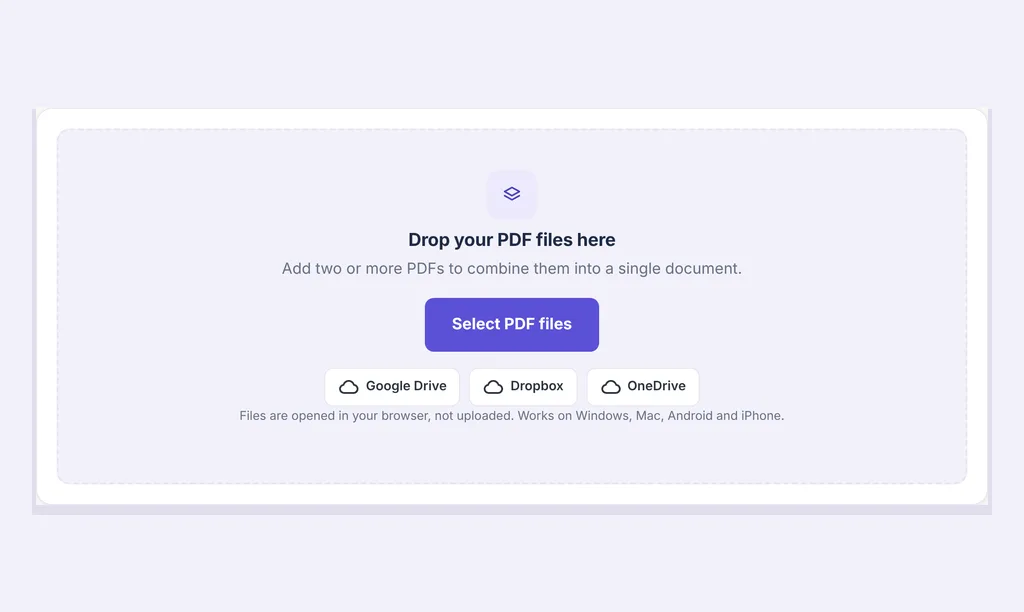
Drop your PDF files here
Add two or more PDFs to combine them into a single document.
Files are opened in your browser, not uploaded. Works on Windows, Mac, Android and iPhone.
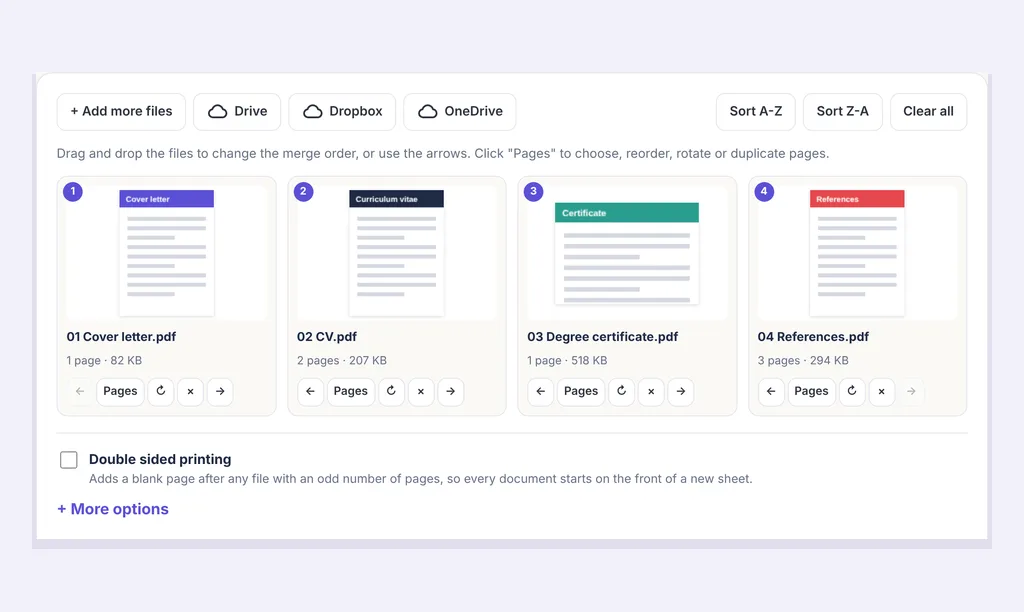
Drag and drop the files to change the merge order, or use the arrows. Click "Pages" to choose, reorder, rotate or duplicate pages.
More options
Pages
Merge PDF features
DoxOrbit's PDF merger does more than glue files together. Here's everything you can do before you combine your PDF files.
Add PDFs from your device or the cloud
Click "Select PDF files" or drag files onto the tool. You can also pick PDFs straight from Google Drive, Dropbox or OneDrive, and they go directly from your cloud account to your browser.
Drag and drop to change the order
Each file appears as a numbered card. Drag the cards into the order you want, or use the arrow buttons, which work well on phones too.
Sort A-Z or Z-A
Use the sort buttons to put files in alphabetical order by file name. Sorting understands numbers, so "Chapter 2" comes before "Chapter 10".
Double sided printing
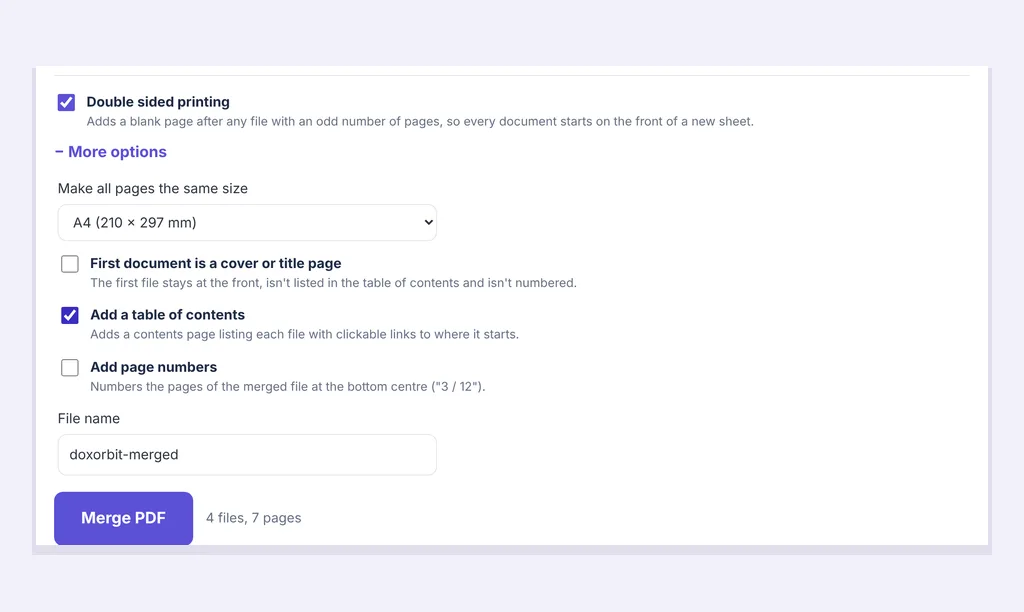
Files with an odd number of pages break double sided printing, because the next document starts on the back of the last sheet. Tick "Double sided printing" and a blank page is added after those files.
Make all pages the same size
Merging A4 with Letter, or portrait with landscape? Under "More options", choose "Make all pages the same size": the first page's size, A4 or US Letter. Pages are scaled to fit and centred, so nothing is cut off.
First document is a cover or title page
Mark your first file as a cover and it's handled separately: it stays at the front, isn't listed in the table of contents and isn't numbered. Find it under "More options".
Add individual pages from a file
Click "Pages" on any file and type the pages you want, such as "1-3, 7", or use the thumbnails to delete, reorder, rotate or duplicate pages before merging.
Table of contents and page numbers
Add a contents page that lists every file with clickable links, and number all pages of the merged PDF. Ideal for reports, course packs and application bundles.
Download the result
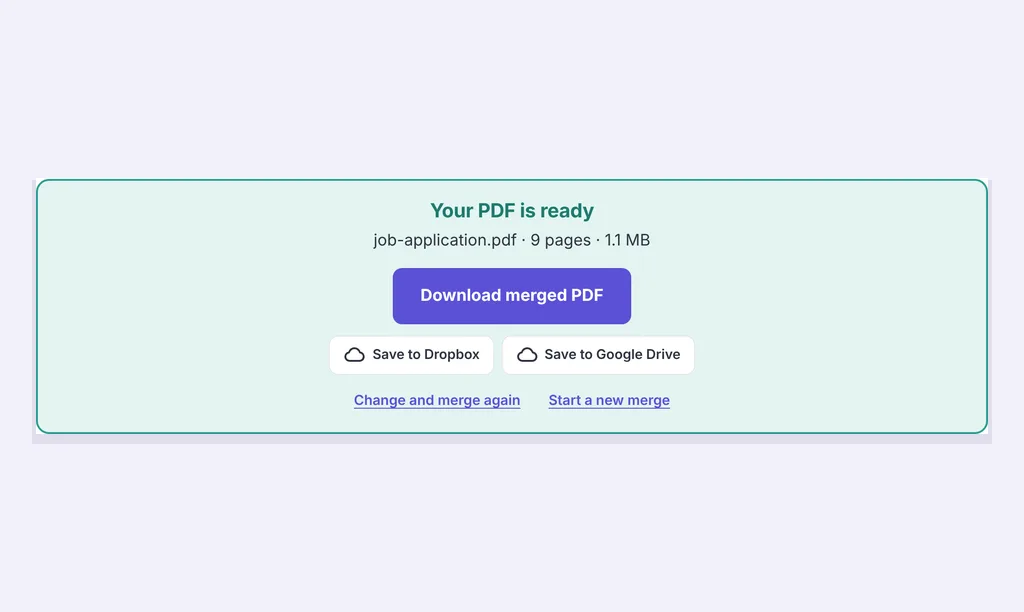
Click "Download merged PDF" to save the combined file to your computer or phone. You can choose the file name under "More options" before you merge.
Save to Dropbox or Google Drive
Prefer the cloud? Choose "Save to Dropbox" or "Save to Google Drive" under the Download button, and the merged file is saved straight to your own account.
Secure, private PDF merging
Your PDFs are merged inside your own browser and are never uploaded to our servers, so there is nothing to intercept, store or delete. When you close the page, your files are cleared from memory. For more details, read how we protect your files and our privacy policy.
What is a PDF merger?
A PDF merger is a tool that combines two or more PDF files into a single PDF document. Instead of sending five separate attachments, you send one tidy file with every page in the right order. The pages keep their original text, images, fonts and layout, so the merged PDF looks exactly like the originals placed one after another.
People merge PDFs every day. Students join assignment pages, job seekers combine a CV with certificates, offices put invoices and receipts together, and families gather scanned documents for visa or school applications. A good online PDF combiner lets you do all of this in your browser, without installing software or paying for a subscription.
How to merge PDF files online
Here's how to combine multiple PDFs into one with DoxOrbit. It takes less than a minute.
- Add your files. Click "Select PDF files", drag your PDFs onto the tool, or pick them from Google Drive, Dropbox or OneDrive.
- Put them in order. Drag the file cards into the order you want, or sort them A-Z or Z-A. Click "Pages" to choose or rearrange individual pages.
- Choose your options. Tick "Double sided printing" if you'll print on both sides. Open "More options" to make pages the same size, mark a cover page, add a table of contents or add page numbers.
- Merge and download. Click "Merge PDF". A few seconds later your combined file is ready to download or save to the cloud.
Why use our free PDF merger?
Really free, no limits
Merge PDF files for free as often as you like. No daily cap, no file limit, no watermark and no premium plan.
Private by design
Your PDFs are combined inside your browser. They're never uploaded to our servers, so nobody else can see them.
Fast, even for big files
There's no upload or download wait. Large documents merge in seconds, even on a slow connection.
No software to install
Merge PDF without downloading software. It works in any modern browser on Windows, Mac, Linux, Android and iPhone.
Full control over pages
Pick single pages, delete, rotate, duplicate and reorder them before you merge PDF documents.
Print-ready options
Double sided printing, same-size pages, a cover page, a table of contents and page numbers are all built in.
Merging also keeps quality intact. DoxOrbit copies your pages as they are, without converting them to images, so text stays sharp and searchable and file sizes stay sensible. The only exception is "Make all pages the same size", which scales pages to fit the new size but still keeps them as real PDF content.
When should you combine PDF files?
Any time several files belong together, one PDF is easier to send, store and print. Some everyday examples:
- Job applications: combine your CV, cover letter and certificates into a single file, because many job portals accept only one upload.
- Visa, passport and university forms: join scanned passport pages, bank statements and letters in the exact order the checklist asks for.
- School and college work: merge assignment pages, lab reports or scanned handwritten notes before submitting.
- Business paperwork: put invoices, receipts and expense reports together for your accountant or month-end records.
- Contracts: attach signed pages, schedules and appendices to the main agreement.
- Reports and portfolios: join chapters written by different people, or build a design portfolio from separate project PDFs.
- Printing: send one file to the printer instead of many, with blank pages added for neat double sided copies.
How to arrange PDF files before merging
A merged PDF is only useful if the pages are in a sensible order. A few minutes of planning saves readers a lot of scrolling.
- Name files with numbers first. Names like "01 Cover", "02 Introduction" and "03 Results" sort perfectly with the A-Z button.
- Follow the requested order. If an office or website gives a checklist, arrange your files in exactly that order.
- Put the most important document first. For applications, start with the form or CV, then supporting documents.
- Remove what you don't need. Use "Pages" to drop blank scans, duplicate pages or terms and conditions nobody asked for.
- Fix sideways pages. Rotate scanned pages so every page reads the right way up.
- Use a cover and contents page for long files. Mark your title page as the cover and add a table of contents so readers can jump to each section.
Is it safe to merge PDF files online?
With DoxOrbit, yes, and here's exactly why. When you add a PDF, it's opened inside your web browser on your own device. The merging is done there too, using your device's processor. Your files are not uploaded to DoxOrbit's servers, so we never receive, see, store or share them. There is nothing to delete afterwards, because nothing was saved anywhere but your own device. When you close or refresh the page, the files are cleared from your browser's memory.
If you pick files from Google Drive, Dropbox or OneDrive, they're downloaded straight from your cloud account into your browser, and the sign-in happens on the cloud provider's own page. If you choose "Save to Dropbox" or "Save to Google Drive", the merged file goes from your browser straight into your account. The access is used only for that save and isn't stored by us.
You can test this yourself: open this page, switch on airplane mode, then merge two files. It still works, because nothing is being sent over the internet. Read more on our file protection page.
Merge PDF on Windows, Mac, Android and iPhone
DoxOrbit works the same on every device, because it runs in your browser. There's nothing to install.
Windows
Open this page in Chrome, Edge or Firefox. Drag PDFs from File Explorer onto the tool, or click "Select PDF files" and hold Ctrl to choose several at once. The merged file goes to your Downloads folder. This is the easiest way to merge PDF files on Windows without Adobe Acrobat.
Mac
Open the page in Safari, Chrome or Firefox, then drag files from Finder or hold Command to select several. Your Mac's Preview app can also combine PDFs, but DoxOrbit adds sorting, page picking, double sided printing and contents pages in one place.
Android
Open the page in Chrome, tap "Select PDF files" and choose files from your phone, Google Drive or other storage. Use the arrow buttons to reorder files, then tap "Merge PDF". The file appears in your Downloads, ready to share on WhatsApp or email.
iPhone and iPad
Open the page in Safari, tap "Select PDF files" and choose "Browse" to pick files from the Files app, iCloud Drive or other storage. After merging, tap Download, then save the PDF to Files or share it straight away.
Frequently asked questions
How do I merge two PDF files into one?
Add both PDFs to the tool above, check that they're in the right order, then click "Merge PDF". Download the single combined file when it's ready.
Is DoxOrbit's PDF merger really free?
Yes. Merging PDF files is 100% free with no limits on how many files you combine or how often you use the tool. There's no signup and no watermark.
How many PDF files can I merge at once?
We don't set a limit. You can merge multiple PDF files in one go. Very large batches depend only on your device's memory, so a laptop handles more than an older phone.
Can I merge PDF files without Adobe Acrobat?
Yes. DoxOrbit merges PDFs in your browser, so you don't need Adobe Acrobat or any other software.
Will merging reduce the quality of my PDFs?
No. Pages are copied as they are, so text, images and fonts keep their original quality. Text stays selectable and searchable.
How do I combine PDF files in the correct order?
Drag the file cards into place, use the arrow buttons, or sort A-Z by file name. Numbering your files before you start ("01", "02", "03") makes sorting easy.
Can I merge only some pages from a PDF?
Yes. Click "Pages" on a file, type the pages you want, such as "2-4, 7", or delete pages from the thumbnails. You can also reorder, rotate and duplicate pages.
Are my files uploaded or stored?
No. Your PDFs are processed in your browser and never uploaded to DoxOrbit. When you close the page, they're cleared from memory.
Can I merge password-protected PDFs?
Not directly. A password-protected PDF has to be unlocked first. If you know the password, remove it, then add the file again.
What does "Double sided printing" do?
It adds a blank page after any file with an odd number of pages, so each document starts on a fresh sheet when you print on both sides.
Can I merge PDFs with different page sizes?
Yes. They'll keep their original sizes by default. To make them match, open "More options" and choose the first page's size, A4 or US Letter.
Does it work on my phone?
Yes. DoxOrbit works in the browser on Android phones, iPhones and tablets, as well as computers.
Explore more free PDF tools
Once your files are combined, you might want to compress the PDF so it fits an email or upload limit, or split a long document back into parts with our upcoming split tool. Need images in your bundle? Turn photos and scans into a PDF with our JPG to PDF converter, then come back and merge them. You'll find tools to rotate pages, add page numbers, add a watermark and protect a PDF with a password on our PDF tools page, and every tool is listed on the all tools page. All of them are free and work in your browser, just like this one.
Ready to combine your PDF files?
Merge PDFs in seconds. Free, private and with no limits.
Merge PDF File Online Free