Double Sided Printing PDF: How to Merge Files Without Page Mix-Ups
 Written by Muhammad Usman Babar, Founder and CEO of DoxOrbit
· 8 min read
You merge a handful of documents into one PDF, print it on both sides, and something's off. The second document starts on the back of the first one's last page. Staple the stack and separate them, and half a page belongs to the wrong document. It's a small problem that wastes a lot of paper.
This guide explains why double sided printing goes wrong with merged PDFs, how a blank page at the right moment fixes it, and which printer settings to choose on Windows, Mac and in PDF readers. By the end you'll be able to print course packs, reports and application bundles that come out clean the first time.
Quick answers
- Why does double sided printing mix up my merged PDF? Any document with an odd number of pages leaves the back of its last sheet free, so the next document starts there.
- How do I fix it? Add a blank page after each document with an odd page count. DoxOrbit Merge PDF does this automatically with its "Double sided printing" option.
- Long edge or short edge? Choose long edge for normal portrait pages that turn like a book.
- No duplex printer? Print the odd pages, turn the stack over, then print the even pages.
In this guide
Why merged PDFs print wrong on both sides
A printer that prints on both sides doesn't know where one of your documents ends and the next one begins. It simply fills the front of a sheet, then the back, then the front of the next sheet, page after page.
Picture three documents merged into one file. The first has 3 pages, the second has 2 and the third has 1. On paper, page 1 and page 2 share the first sheet. Page 3 goes on the front of the second sheet, and the back of that sheet gets the first page of document two. Now documents one and two are glued together on a single sheet of paper.
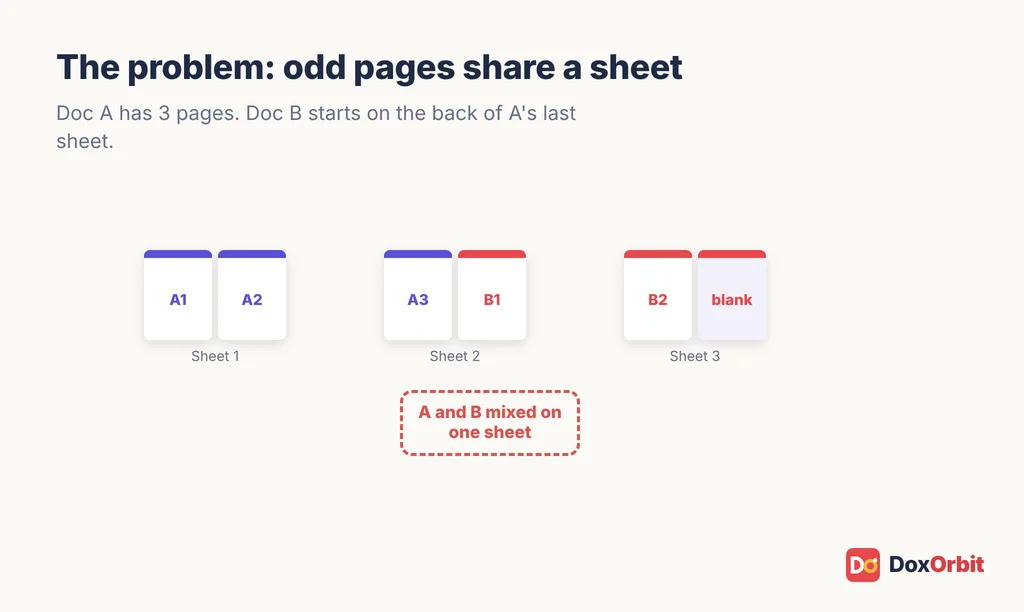
The rule is simple. Documents with an even number of pages end on the back of a sheet, so the next one starts fresh. Documents with an odd number end on the front, and the next one takes the free back.
The fix: a blank page after odd documents
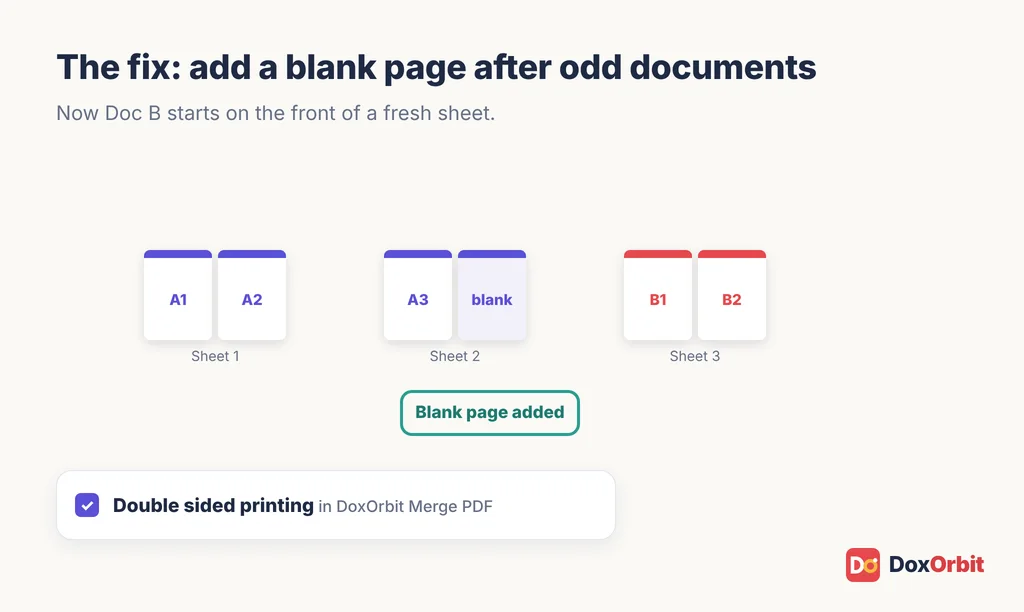
Add one blank page after every document that has an odd number of pages. The blank page fills the back of the last sheet, so the next document always begins on the front of a new sheet. Documents with an even page count don't need anything added.
In the example above, document one (3 pages) gets a blank page, document two (2 pages) stays as it is, and document three (1 page) gets a blank page if anything comes after it. Doing this by hand means counting pages and inserting blanks in the right places, which is easy to get wrong in a long bundle.
How to merge PDFs for double sided printing
DoxOrbit's free PDF merger counts the pages and adds the blanks for you:
- Open doxorbit.com/merge-pdf and add your PDF files. You can add JPG and PNG images too.
- Put the files in order by dragging the cards, using the arrows or sorting A-Z.
- Tick Double sided printing.
- Click Merge PDF and download the file.
A few related options under "More options" help with printed bundles:
- First document is a cover or title page: keeps the cover at the front. It still gets a blank back if it has an odd page count, so the first real document starts on a new sheet.
- Add a table of contents: adds a contents page, padded with a blank back when needed.
- Make all pages the same size: scales A4 and Letter pages to one size so the printer doesn't stop to ask for different paper.
- Add page numbers: numbers the real pages and skips the blank ones.
Merging happens in your browser, so nothing is uploaded. That's useful when you're printing payslips, contracts or medical letters. If you're merging on a phone, see our guide on how to merge PDF on iPhone.
Double sided printing PDF settings
Once the file is ready, tell the printer to use both sides. The wording differs between apps and printer models, but the setting is usually easy to find.
Windows (Edge, Chrome, Adobe Acrobat Reader)
Press Ctrl + P. Look for "Print on both sides", "Two-sided" or "Duplex". In some apps it sits under "More settings" or in the printer's "Properties" or "Preferences" window. If you can't find it, your printer may not support automatic double sided printing.
Mac (Preview, Safari, Acrobat Reader)
Press Command + P, click "Show Details" if the window is small, and tick Two-Sided. In Preview it appears near the copies and pages settings.
Microsoft Word
If you're printing straight from Word, choose File, then Print, then change "Print One Sided" to "Print on Both Sides". Microsoft says that if "Print on Both Sides" is available, your printer is set up for automatic duplex printing.
Long edge or short edge?
Most print dialogs ask how the paper should flip. This decides which way up the back of each page prints.
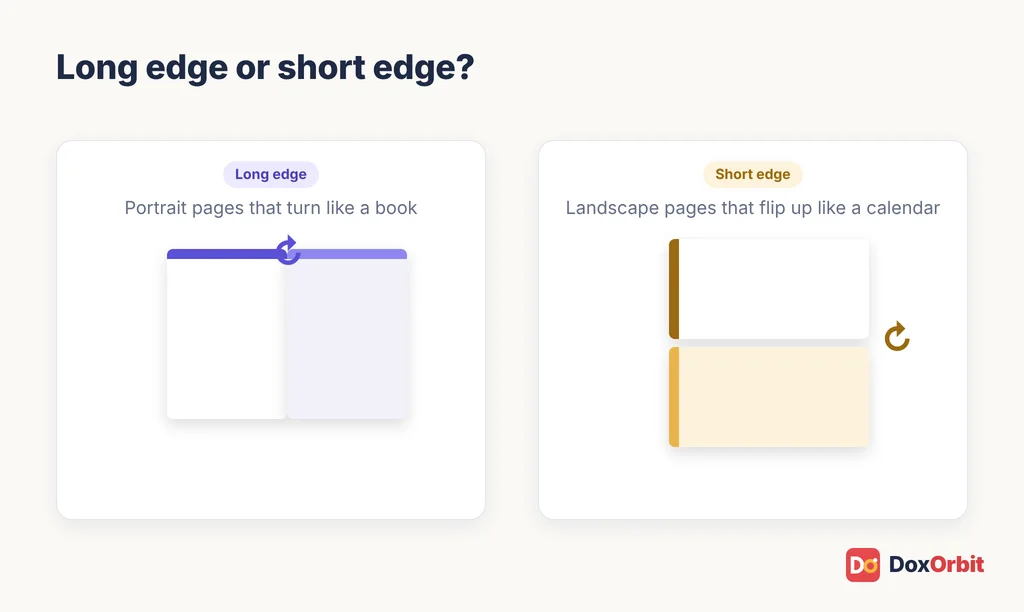
- Long edge (flip on long edge): for portrait documents you read like a book, turning pages left to right. This is the right choice for almost all letters, reports and forms.
- Short edge (flip on short edge): for landscape documents or pages you flip upwards, like a calendar or a clipboard.
Choose the wrong one and every back page comes out upside down. If your file mixes portrait and landscape pages, use long edge and consider the "Make all pages the same size" option when merging.
Printing on both sides without a duplex printer
If your printer only prints on one side, you can still make double sided copies by hand:
- In the print window, choose to print odd pages only.
- Take the printed stack, turn it over and put it back in the paper tray. Which way round depends on your printer, so mark the top of one sheet with a pencil the first time.
- Print the even pages only.
Some printer drivers offer a "manual duplex" mode that pauses halfway and tells you when to turn the paper. Microsoft recommends running a test first so you know how your printer wants the pages reloaded. If you use an inkjet printer, let the first side dry before you feed the pages back in, or the ink can smear.
Tips for perfect double sided copies
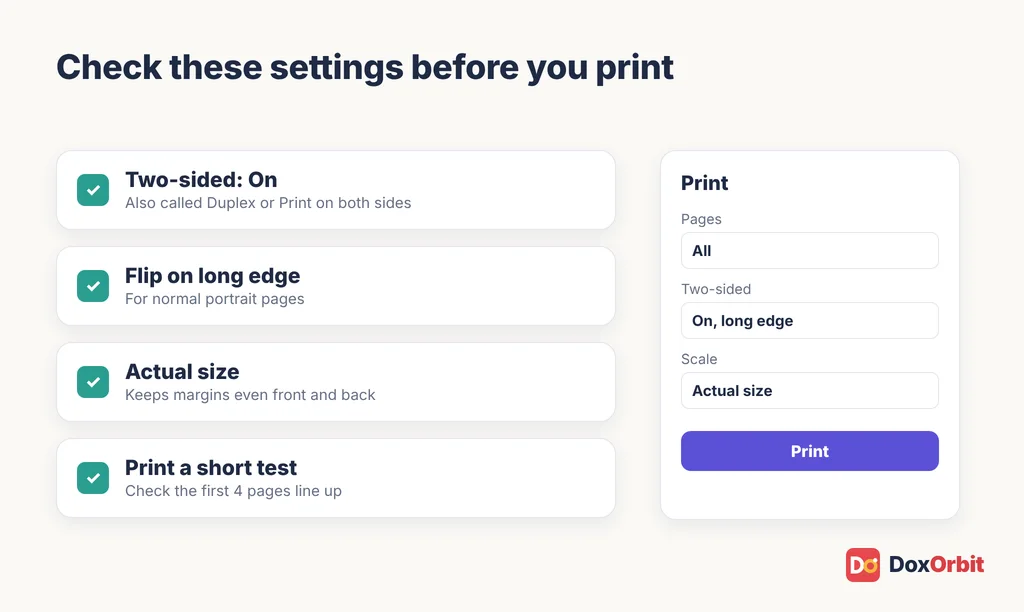
- Print a test first. Print the first four pages of a long file and check that the backs line up before printing fifty copies.
- Use "Actual size". "Fit to page" can shrink pages unevenly. Actual size keeps margins consistent front to back.
- Use thicker paper for important copies. 80 gsm paper can show text through from the other side. 90 to 100 gsm looks cleaner.
- Remove pages you don't need before merging. Use the Pages option in DoxOrbit to drop blank scans or terms and conditions, which saves paper.
- Keep a single PDF. Printing one merged file instead of many separate ones keeps the order fixed and saves time at the printer.
Frequently asked questions
Why does my second document start on the back of the first?
Because the first document has an odd number of pages. Its last page prints on the front of a sheet, and the printer puts the next page on the back. Add a blank page after odd-length documents to stop this.
Does DoxOrbit add blank pages to every document?
No. It only adds a blank page after documents with an odd number of pages. Even-length documents stay as they are.
Will blank pages show in the PDF on screen?
Yes, they appear as empty pages when you scroll. If you're sending the file by email rather than printing it, merge without the double sided option.
What's the difference between duplex and double sided printing?
They mean the same thing. Duplex is the technical term for printing on both sides of the paper.
Can I print double sided from my phone?
Yes, if your printer supports it. On iPhone, use AirPrint and look for the double sided option in the print settings. On Android, use your printer's app or the system print service.
Final thoughts
Double sided printing problems with merged PDFs come down to one thing: odd page counts. Add a blank page after those documents, choose long edge for normal portrait pages, and print a short test before the full run. With the double sided option in DoxOrbit doing the counting for you, every document starts on its own sheet and your stack is ready to staple.
Printing a bundle soon?
Merge PDFs for double sided printingSources and citations
- Microsoft. "Print on both sides of the paper (duplex printing) in Word." Microsoft Support. support.microsoft.com
- Adobe. "Printing double-sided in Acrobat and Acrobat Reader." Adobe Help Center. helpx.adobe.com
- Epson. "How do I enable double-sided printing for my product in Windows?" Epson Support. epson.com
- Toronto Metropolitan University. "Printing from Microsoft Office applications." Computing and Communications Services. torontomu.ca